13. local overrides on Soylent.com
💡 Would you like more free lessons? Please subscribe on YouTube to show your support.
Lesson Details
- Lesson: 13
- Description: Using local overrides with CSS font-display to improve the performance of soylent.com
The goal of this lesson
To improve the page load performance on Soylent.com using the local override feature of DevTools.
What we'll cover
- Introduction
- Network
- Font display
- Local overrides
- Conclusion
Introduction
Soylent.com loads a custom webfont for some of their text. Before the webfont is ready, the browser hides the text to avoid the potentially jarring UX when switching from a fallback font -> to the webfont. Let's explore an approach of improving this experience.
Network
Use the screenshots feature within the Network panel to observe the problem.
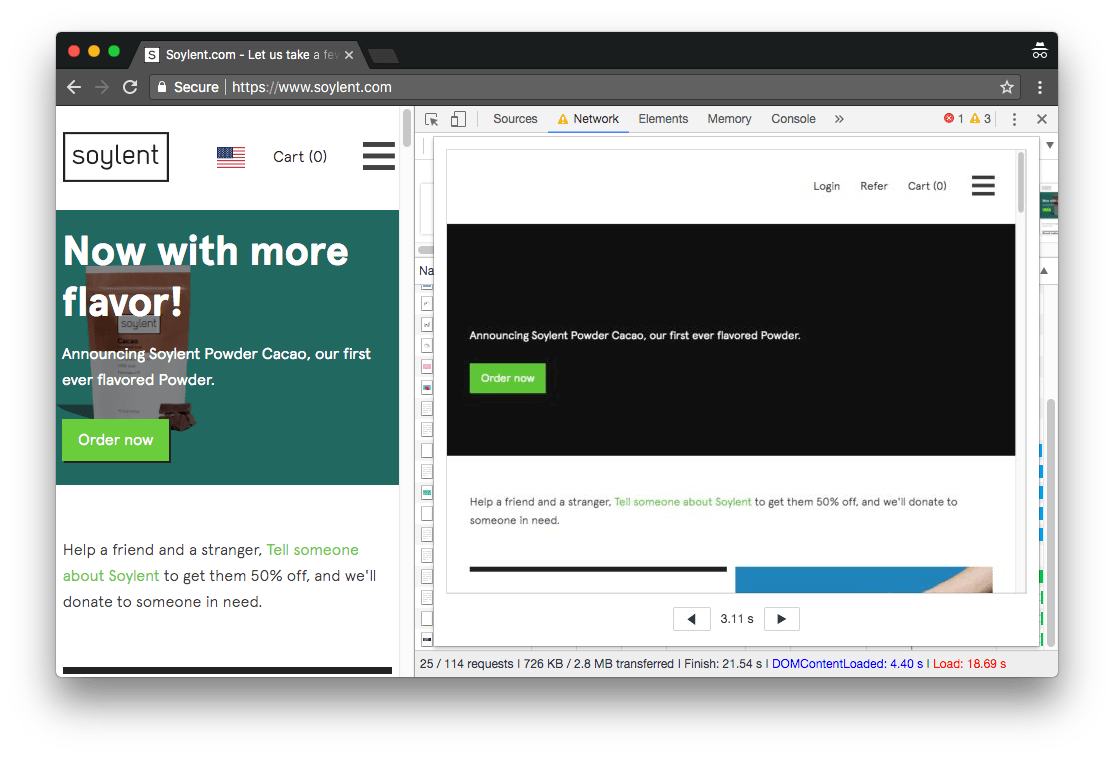
Notice some text has loaded, but the main headline has not.
Verify a webfont is being used in the styles pane by inspecting the headline text (once it has visually displayed).
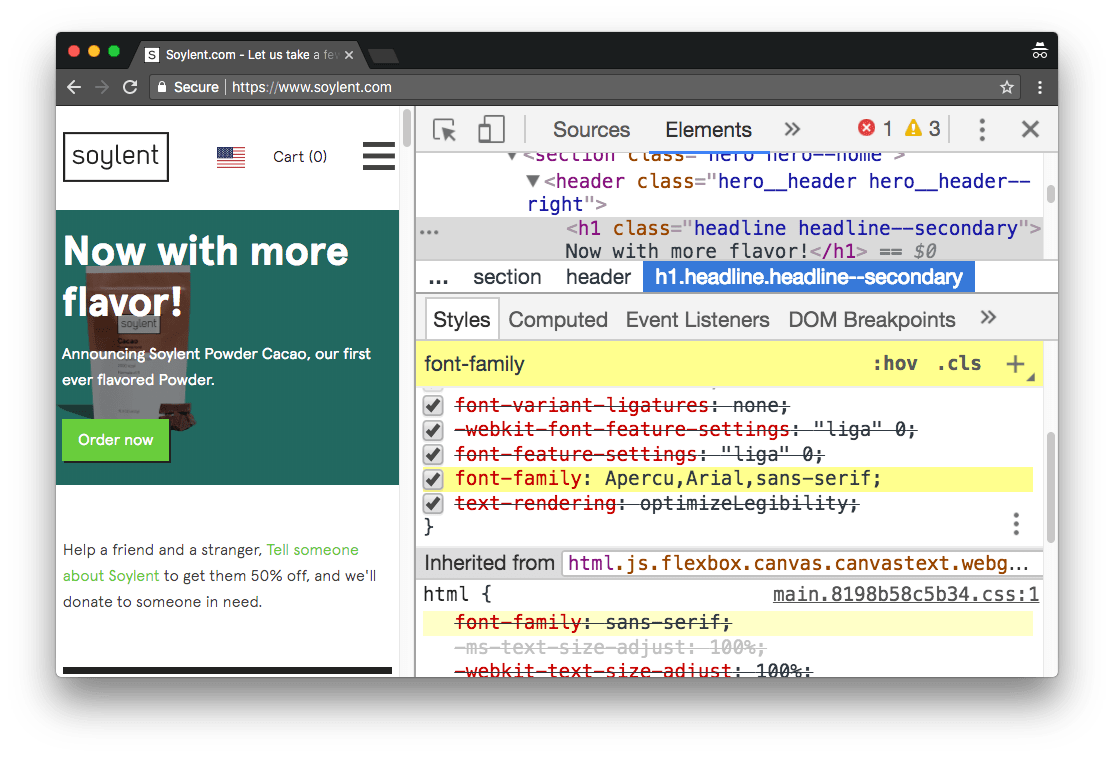
Font Display
One potential improvement is to use the font-display property, specifically: font-display: swap;
Font swap period: If the font face is not loaded, any element attempting to use it must render a fallback font face. If the font face successfully loads during this period, it is used normally.
font-display: swap gives the font face no block period and an infinite swap period.
To use font-display: swap, we must add it into the CSS file which Soylent uses. However the effect of this CSS property manifests itself during page load. If we make changes to the CSS file and reload the page, our changes made via DevTools are lost. Local overrides can fix this.
Local overrides
Cmd or Ctrl click onto the font-family CSS property within the styles pane. That takes you to the Sources Panel. From here, pretty print the CSS file. Open the overrides pane in the sidebar of the Sources Panel and enable local overrides. From here, you can right click on the CSS file and select 'Save for Overrides'.
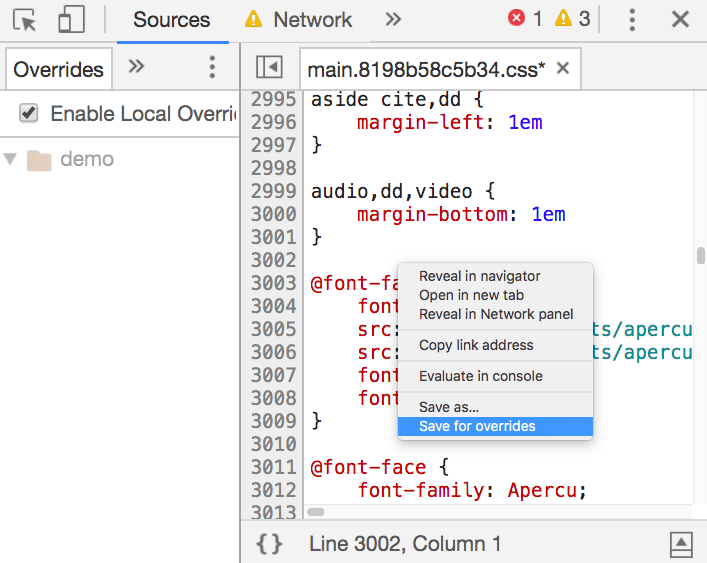
Add font-display: swap; to all the font-face blocks which define the Apercu font.
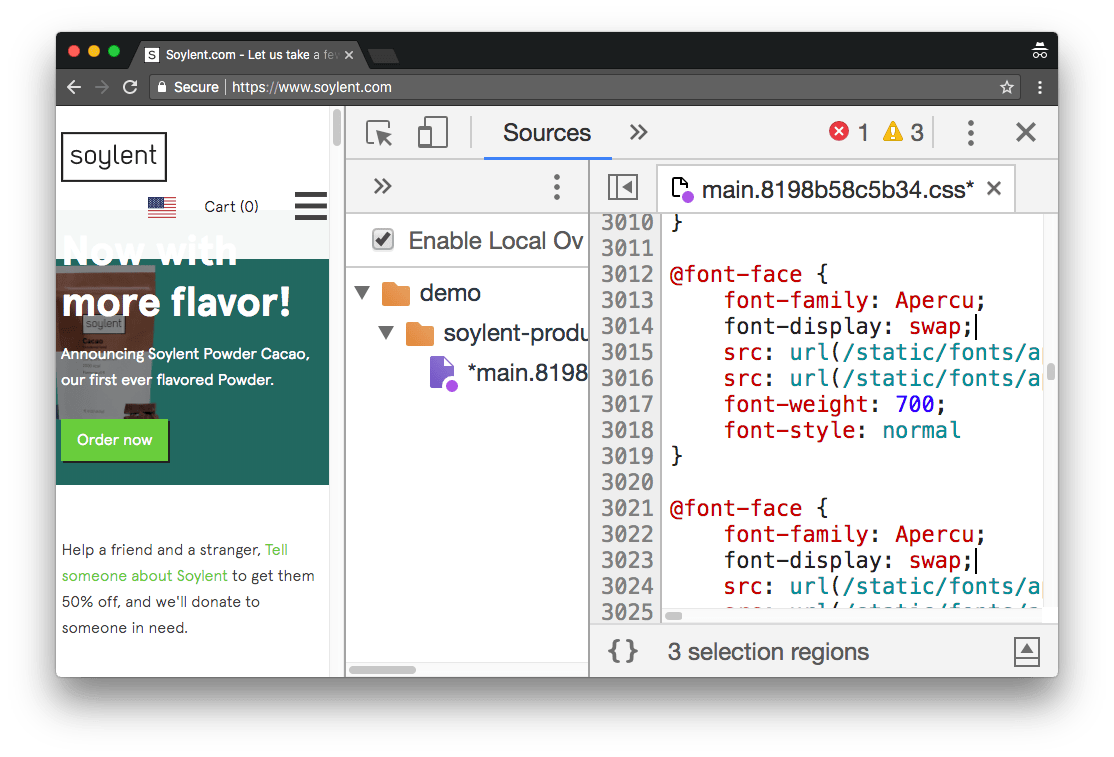
Save your changes with Cmd / Ctrl + S and reload the page capturing screenshots.
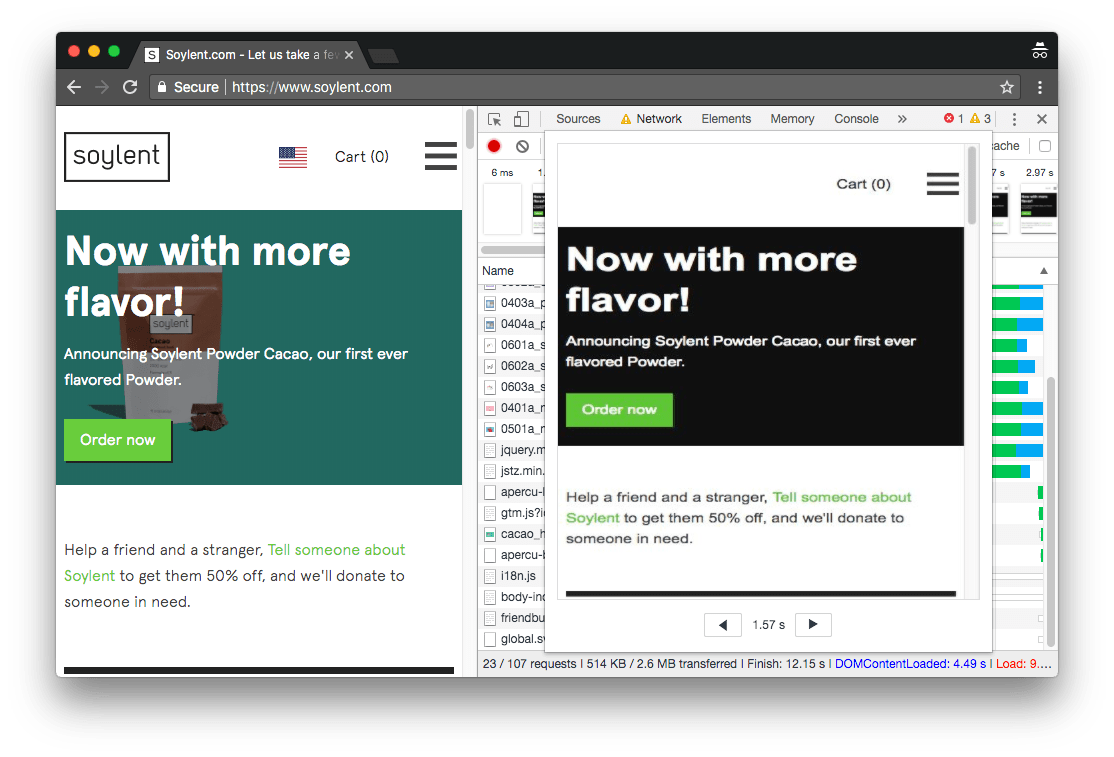
Observe the first paint now includes the text.
Conclusion
In this lesson we used the Network Panel screenshot feature to observe webfont text which has a delay in displaying. We then used the Sources Panel local overrides feature to map a remote resource to our local filesystem resource. We then added the CSS font-display property to the CSS file font-face definitions which persisted after a page reload.